Start with vanilla.
Install the Minecraft Java client and its matching Java runtime from one place. No separate Java setup to work through.
 MONKEYCRAFTA MONKEYSERVERS PROJECT
FOR OUR CORNER OF MINECRAFT
A little less setup before your next session. Install Minecraft, keep your profiles together, and make room for the community’s modpacks.
Get the Windows preview Read what’s ready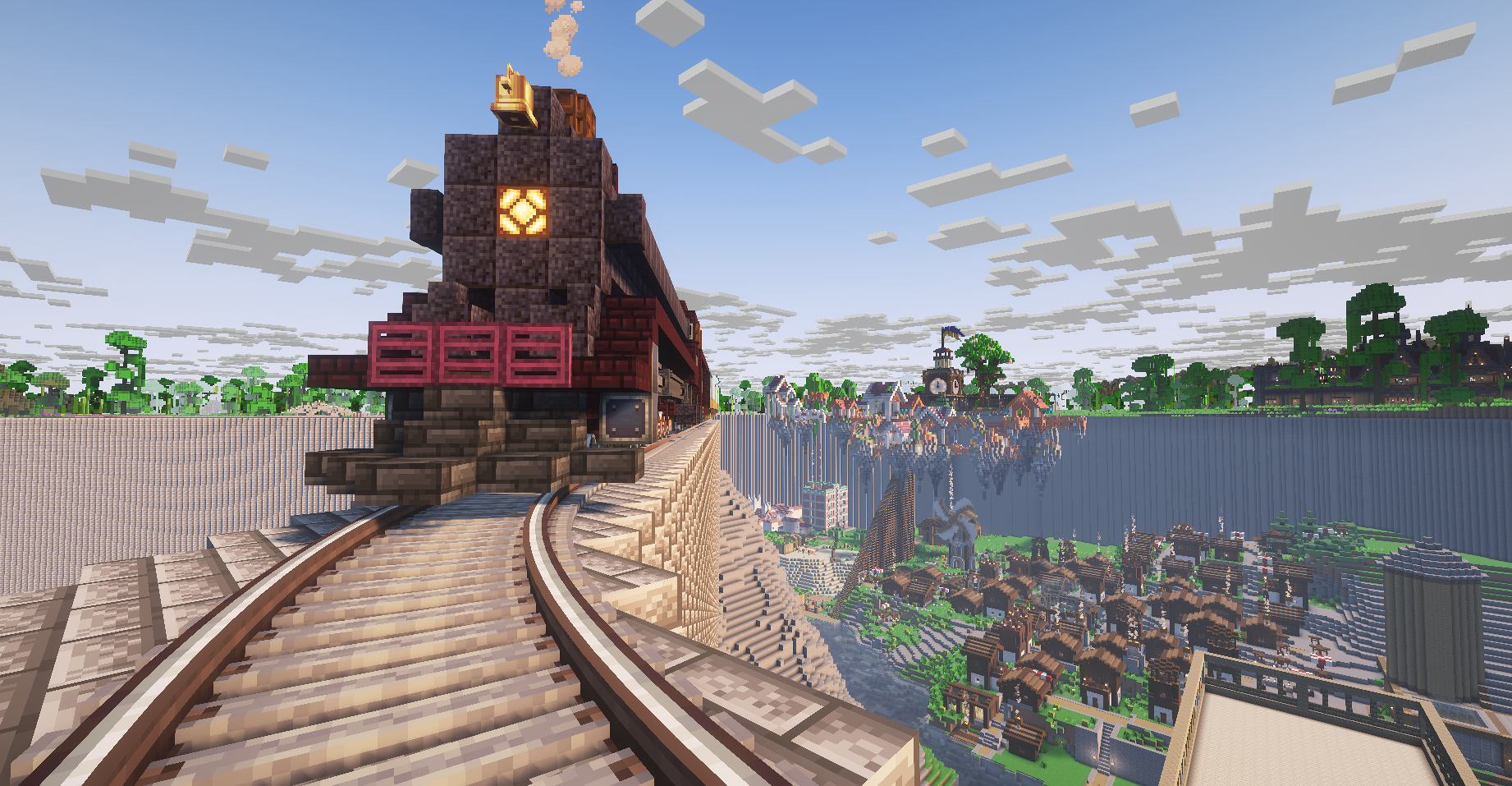
ON THE WORKBENCH / PREVIEW 02
The launcher’s ready to look around. Pick a profile, install its files, and set things up on your PC.
Microsoft sign-in and Play are waiting on Minecraft API approval. This preview can install files, but it can’t launch a playable session yet.
Windows preview
Loading release information…
This is an unsigned development preview. Windows may show an unknown-publisher notice. A signed release and a live Minecraft launch test are still pending.
The browser checks each download part and the complete launcher against this SHA-256 checksum:
Loading…
View release manifest
A LOOK INSIDE
Install the Minecraft Java client and its matching Java runtime from one place. No separate Java setup to work through.
Profiles have their own local instances. File checks and repair tools help you sort out an install without mixing it into another pack.
The launcher supports versioned profiles published by the server team. The first public catalog starts with vanilla; the Civilizations screenshots here are from our existing CurseForge instance.
AWAY FROM THE SETTINGS MENU
A couple of moments from
Monkeycraft Civilizations.
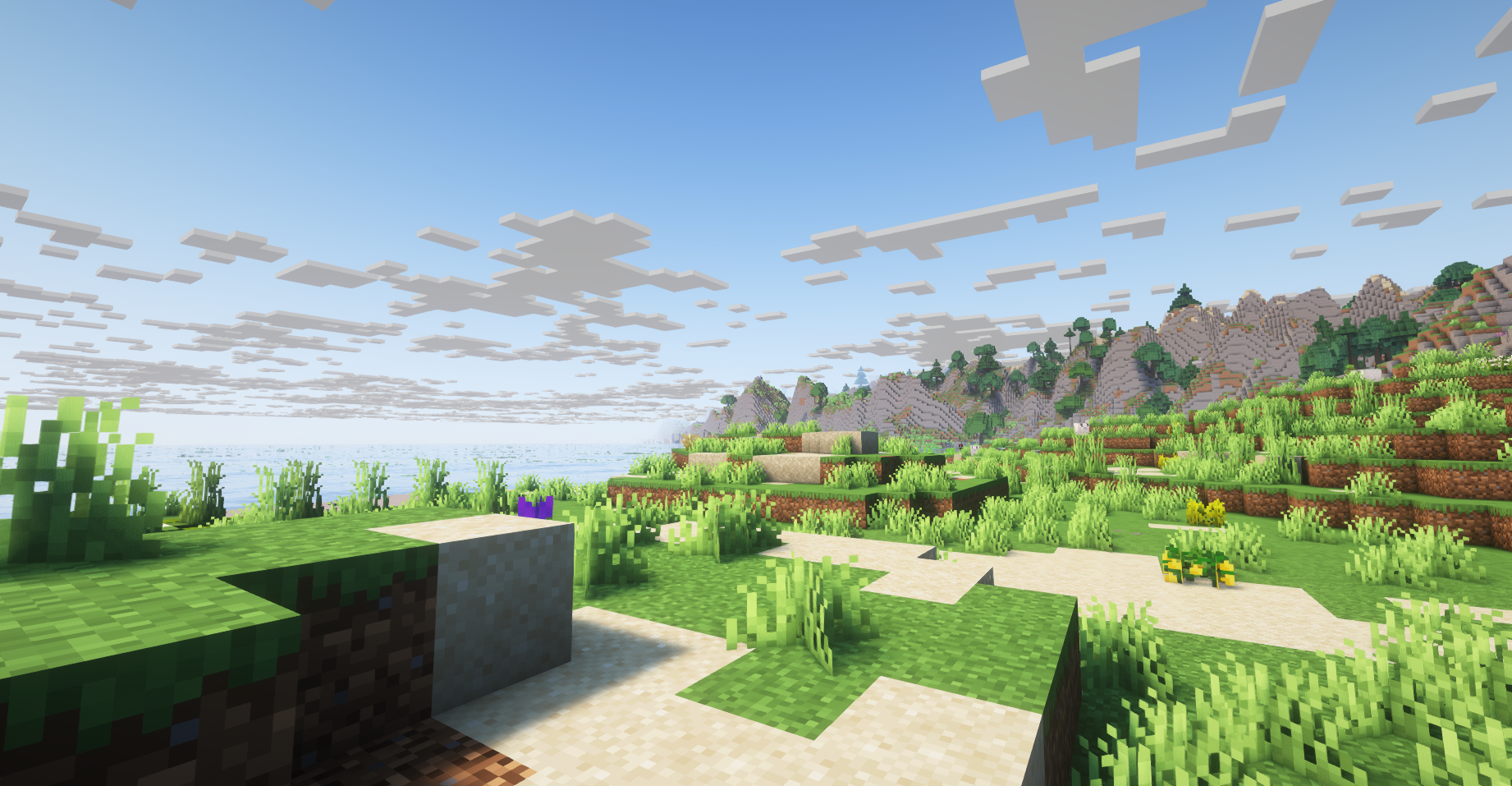
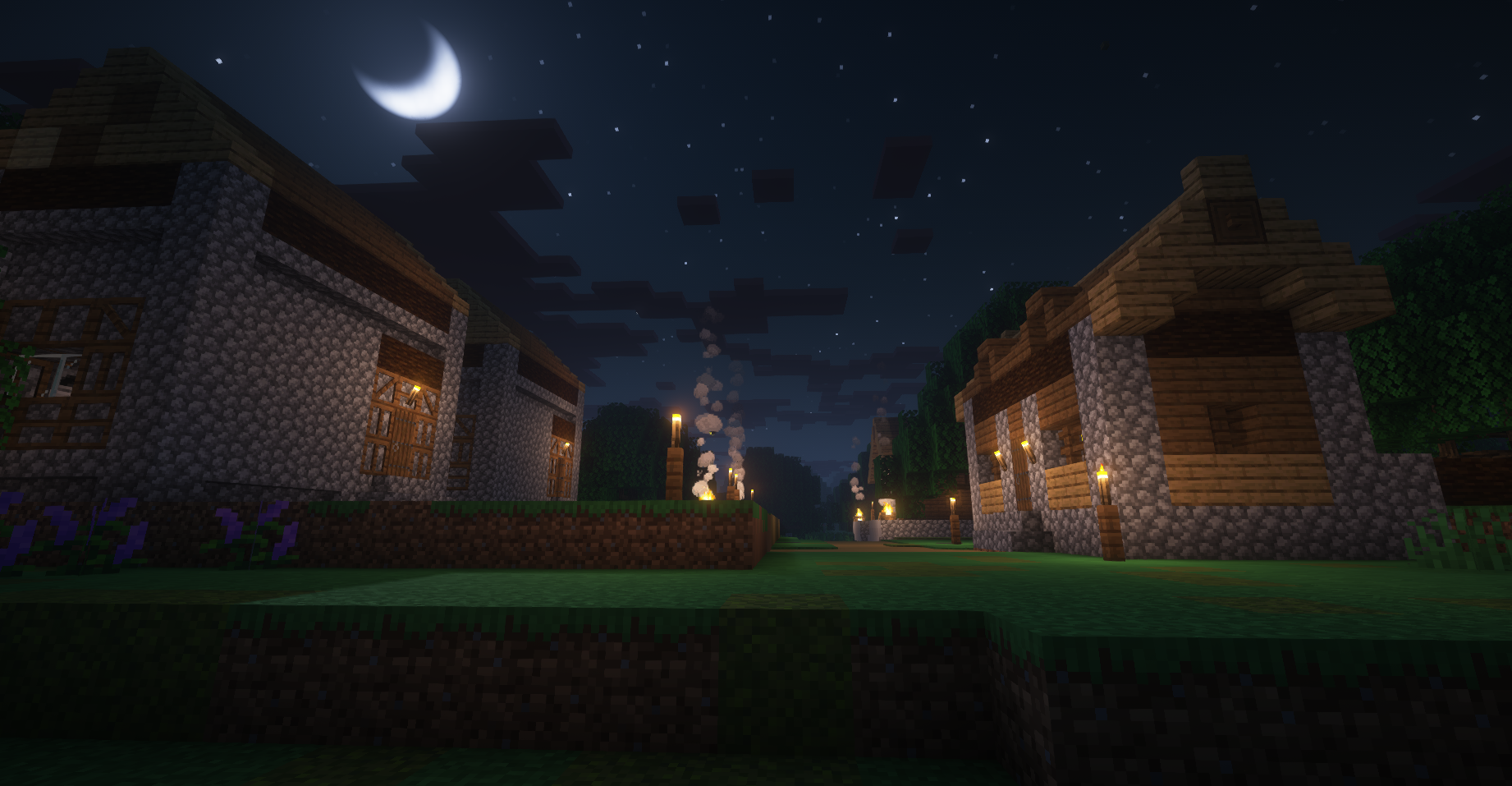
Screenshots from our CurseForge instance. Modded visuals may differ from vanilla Minecraft.
BEFORE YOU GO
No. The launcher downloads official client components when you install a profile. Playing requires a Microsoft account that owns Minecraft Java Edition.
No. Monkeycraft uses its own instance library. Existing CurseForge instances are not imported or changed automatically.
Save the Windows launcher somewhere permanent, then open it and choose a profile to install. Instances and settings live in your Windows user profile. Microsoft sign-in and Play will need Minecraft API approval before they’re available.
No account is needed to download. When Minecraft API approval is complete, Microsoft sign-in will happen in the desktop launcher through Microsoft’s own sign-in page.